
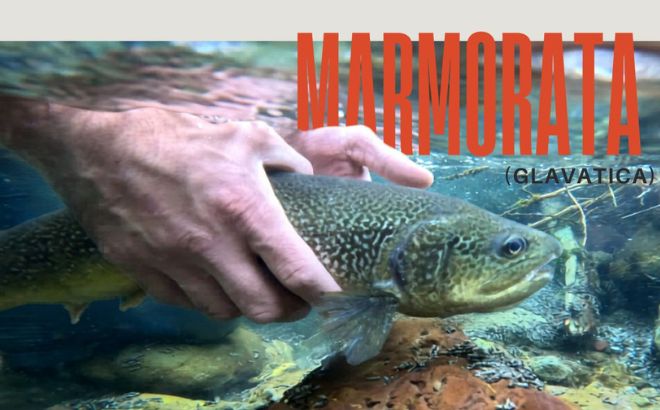
How to Use Canva’s Magic Tool to Create 3D Layered Designs
Want to make your graphics pop—literally? You no longer need to be a Photoshop pro to wrap images around your text. With Canva’s AI-powered Magic tools, you can separate subjects from their backgrounds in one click and move them wherever you want. Here is the fastest way to create a high-end, layered look.
The Step-by-Step “Magic” Method
- Choose Your Canvas
Start by entering your desired image size or selecting a pre-made template (like a Pinterest Pin or Instagram Square). - Insert Your Photo
Upload the photo you want to work with. This works best with high-quality images where there is a clear subject in the foreground. - Activate “Magic” Separation
Click on your image, select Edit Image from the top menu, and then select Magic Layers. This tool automatically identifies the subject and separates it into its own movable layer. - Add Your Text
Type out your brand name or headline. Since your image is now separated, you can move your subject in front of the text or behind it effortlessly. - Fine-Tune the Layers
Right-click your subject or text and use the “Bring Forward” or “Send Backward” commands until it looks exactly right.
✨ Why This Rules for Small Businesses
Using the Magic Layers tool allows you to “sandwich” text between the background and the subject. This creates an aesthetic 3D effect that stops the scroll on social media and makes your brand look incredibly professional with zero extra effort.
Final Thoughts
Design doesn’t have to be difficult. By using Canva’s AI to separate your layers, you can create depth and movement that used to take hours. Try it on your next blog header or Pinterest graphic!