
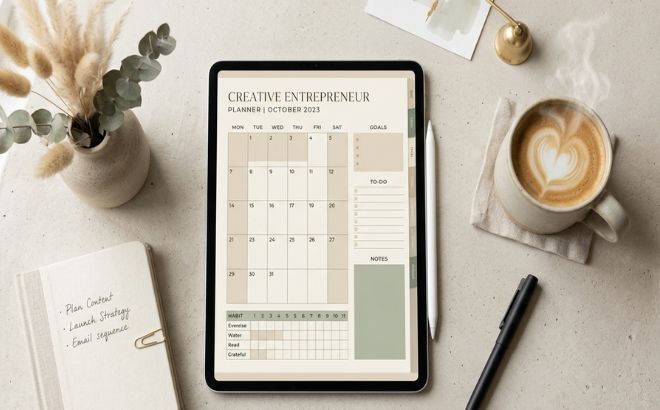
Let’s be completely honest for a moment: the internet is absolutely flooded with generic, boring planners and templates that look like they were generated by a robot in five minutes. If you want people to actually click that “Buy Now” button, your product needs to have a soul, a distinct aesthetic, and it needs to solve a real problem.
The good news? You don’t need a master’s degree in graphic design. Canva is more than enough—but only if you use it strategically.
Here is my personal guide—no gatekeeping, no fluff—on how to turn your creative ideas into digital products that actually convert into sales.
1. It All Starts with the Niche (Less is More)
The biggest mistake you can make when starting out is saying: “I’m going to make planners for everyone.” When you design for everyone, you design for no one.
Instead of broad, generic topics, focus on a specific aesthetic or an audience that resonates with your personal style. For example:
- Instead of a basic to-do list, create an “Aesthetic Instagram Kit for Lifestyle Vloggers” (where you can weave in those beautiful, earthy tones like sage green or warm beige).
- Instead of corporate presentation decks, design “Media Kit Templates for Creative Entrepreneurs.”
When your target audience looks at your product and thinks, “Wow, this was made exactly for my taste,” half of your selling job is already done.
2. The “Canva Pro” Element Trap
This is a technical detail where so many beginners trip up, and it can cost you good reviews.
If you are selling a finished PDF (like an e-book or a printable planner that the customer just prints out), you can use both Free and Pro elements. However, if you are selling a template that the customer is supposed to open and edit themselves:
If you use a Pro element in a template, your customer will see a watermark, and Canva will force them to pay or upgrade to download their design. The result? A frustrated buyer and a bad review. Stick to free fonts, and get creative with hidden graphics—remember those hidden search codes I wrote about earlier? Those are your secret weapon.
3. Aesthetics Attract, But Functionality Sells
Your product needs to look stunning—that’s what catches someone’s eye on Pinterest or your blog. But if it’s cluttered, confusing to navigate, or uses too many clashing fonts, people will ask for a refund.
- Limit your palette: Choose 2 main fonts and no more than 4–5 complementary colors.
- Let the design breathe: Don’t overcrowd the pages. Whitespace is your friend; it makes your product look modern, expensive, and premium.
- Think about the user experience: If you’re making a digital planner for tablets, use Canva’s linking tool to connect your pages. When a buyer can jump from January to October with a single click on a tab, you’ve just given them a high-end experience.
4. Packaging the Product (Deliver the Magic)
When someone buys your digital product, don’t just email them a raw Canva editing link. It feels unfinished and unprofessional.
Instead, design a beautiful “Thank You / Instructions” page in PDF format using Canva. Write a warm, personal note, give them quick instructions on how to use their new file, and include a stylish button that holds their unique Canva link. (Make sure to share it via Share -> Template Link, so they get a fresh copy without messing up your master design!).
5. Buyers Choose with Their Eyes (Create “Living” Mockups)
Because you are selling something digital, you have to help people visualize it in the real world. A great mockup drastically boosts your conversion rates.
Take a screenshot of your planner or e-book interior and use Canva’s mockup tool (Edit Photo -> Mockups). Show how your design looks inside a sleek iPad sitting on a minimalist, aesthetic desk. If your product is a 40-page journal, don’t just show the cover—create a beautiful collage layout displaying 10–15 interior pages so buyers know exactly the value they are getting.
Where Should You Sell?
Once your design is ready, you have a few great options to host your shop:
- Etsy: Perfect for beginners because millions of buyers go there specifically looking for digital templates with their cards ready.
- Gumroad / Stan Store: If you want to share your products directly through your Instagram or blog posts, these platforms offer the quickest, cleanest checkout experience for your audience.
Now it’s your turn…
What is the first digital product you feel inspired to design this week? If you need a head start on setting up your color scheme, look back at my guide on creating a Canva Brand Kit to get your aesthetic locked in!