
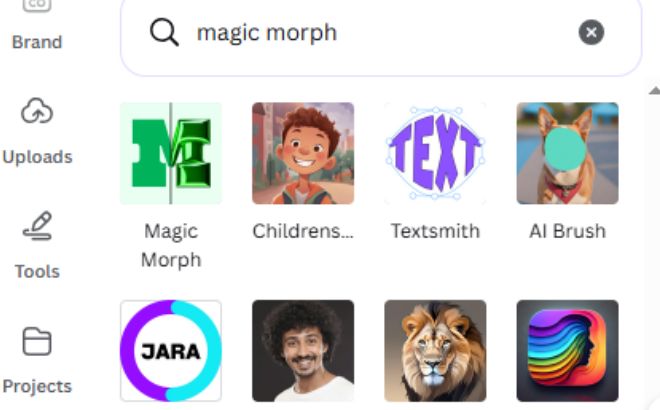
As I’ve been diving deeper into Canva and following the recent trends, I realized that the secret isn’t just about having “talent”—it’s about knowing which AI buttons to push. Note that most of the AI tools require Canva Pro Subscription.
1. Magic Morph: Create Custom Textures
Ever wanted your text to look like it’s made of shiny gold, rose-colored balloons, or soft fur? Instead of searching for hours for the right element, let AI build it for you.
- The Hack: Select your text, go to Effects > Magic Morph, and type a prompt like “inflatable 3D pink plastic” or “matte black chrome.”
- Why it works: It creates a unique “wow” factor that stock templates just can’t match.
- If you don’t have Canva Pro, you can still get a 3D look by searching for keywords like “3D glossy letters” or “gold typography” in the Elements tab. Another great trick is layering your text and using the “Hollow” and “Shadow” effects to create manual depth. Don’t forget that you can always start a 30-day free trial to test out these Magic AI tools for yourself!
Pro Tip: Use this for your main blog headers to grab attention instantly!
2. Magic Expand: Fix Your Cropping Issues
We’ve all been there: you have a beautiful vertical photo, but you need it to be a horizontal banner. Usually, you’d have to crop out half the image. Magic Expand changes everything.
- The Hack: Select your photo, click Edit Photo > Magic Expand. Choose your new size, and the AI will “paint” the rest of the landscape for you.
- The Result: You get a perfectly sized image without losing the focus of your photo.
- Keep in mind that AI can sometimes generate unexpected or slightly “off” results, especially with complex backgrounds. If the expansion doesn’t look right, simply click “Generate new results” to let Canva try again, or use the Magic Eraser to clean up any small glitches. Don’t be afraid to experiment with different photo positions until the AI gets the landscape just right!
3. Magic Grab: Total Control Over Photos
Imagine you found the perfect stock photo of a desk, but there is a coffee cup right where you want to place your logo. In the past, that photo would be useless.
- The Hack: Use Magic Grab to “detach” any object from its background. You can move the object, resize it, or delete it entirely.
- Design Win: The AI intelligently fills in the background behind the object you moved.
4. Magic Media: Use “Style” Selectors
Most people get frustrated with AI-generated images because they look “messy.” The secret is using the Style Selector before you hit generate.
- The Hack: Instead of just typing “a cat on a chair,” scroll down to Styles and pick “Minimalist,” “Dreamy,” or “Concept Art.”
- The Secret Formula:
[Subject] + [Environment] + [Lighting] + [Style]
5. The “Custom Icon” Hack (Magic Media)
Have you ever searched for a specific icon or illustration in Canva’s library, but nothing matched your brand’s color or style?
- Use the Graphics tab inside the Magic Media app. Just type a prompt like ‘Minimalist 3D icon of a travel camera, pastel aesthetic’ and Canva will generate four unique graphics just for you. The best part? You can choose styles like ‘Sketch,’ ‘Doodle,’ or ‘Flat’ to make sure every element on your page looks like it belongs to the same set.”